How to Use Background Remover Free Online — Step by Step Guide
You’ve got the perfect photo. Great lighting, good angle, and then — the background is an absolute mess. A cluttered desk, a random wall, or worse, someone walking through the frame at the exact wrong moment. We’ve all been there, and it’s genuinely frustrating when one small thing ruins an otherwise great image.
The good news? You don’t need Photoshop, a design degree, or an expensive subscription to fix it. You just need a fast, reliable way to remove background from image free — and that’s exactly what this guide is about.
Why Background Removal Actually Matters More Than You Think
It might seem like a small cosmetic fix, but the background of your image carries a lot of weight. Think about it from a practical angle. If you’re selling a product online, a clean white background instantly makes the item look professional and trustworthy. If you’re applying for a job and need a formal headshot, a distracting background makes you look unprepared — even if you’re the most qualified candidate in the room.
For freelancers and small business owners, this is especially real. Clients judge your work before they even speak to you. A profile photo with a messy kitchen visible behind you sends a completely different message than one with a clean, neutral background.
Then there’s the ID photo situation. Anyone who’s tried submitting a photo to a university admission portal in Pakistan — or uploading documents to NADRA’s online services — knows that strict background requirements can send you scrambling. Usually it needs to be plain white or light blue, with specific dimensions. Getting that done at a studio just for one digital photo feels like overkill. That’s where a free online tool saves you both time and money.
Beyond personal use, eCommerce sellers on platforms like Amazon, Daraz, Etsy, or Shopify need clean product photos. It’s practically a requirement. Buyers don’t trust grainy or cluttered product images. A transparent or white background makes your product the star — which is the entire point.
Graphic designers use background removal constantly for creating social media content, banners, and marketing materials. Even content creators removing a logo from a thumbnail or isolating a person for a YouTube graphic rely on this exact feature dozens of times a week.
The problem historically was that doing this well required manual selection tools in Photoshop — painstaking, time-consuming work that most people simply don’t have time for. Modern AI has genuinely changed that. You upload an image, and within seconds the subject is isolated cleanly, with no manual tracing required.
How to Remove a Background From an Image — Step by Step
- Open the tool — Head over to the Background Remover on ToolifyCore. No account needed, no sign-up wall, no hidden steps.
- Upload your image — Click the upload button and select your image file from your device. JPG and PNG formats both work well. If your file is on your phone, you can open the tool in your mobile browser — it works there too.
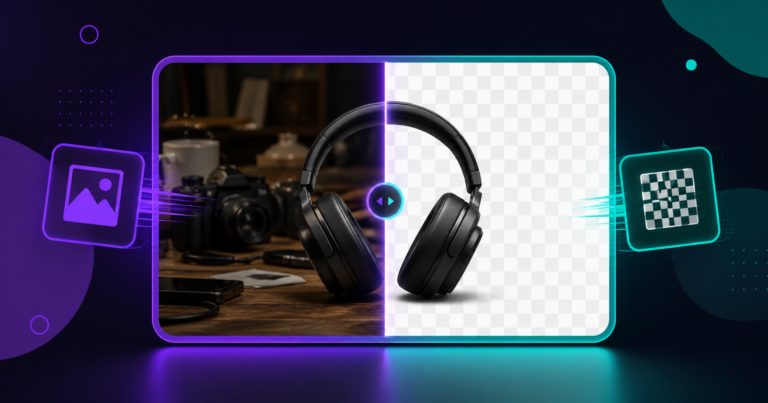
- Let the AI do its job — The tool processes your image automatically using AI-powered background detection. It identifies the main subject — whether that’s a person, a product, or an object — and separates it from the background cleanly.
- Preview the result — You’ll see the processed image with the background removed. Check the edges carefully, especially around hair or fine details. In most cases, the result is clean and ready to use right away.
- Download your image — Hit the download button and save your transparent PNG file. Done. The whole process takes under thirty seconds in most cases.
Real Results — What to Actually Expect
Let’s be specific. For a standard product photo — say, a pair of sneakers on a wooden floor — the background removal is typically flawless. Straight edges, solid colors in the background, good contrast between subject and background — these all make the AI’s job easy. Results take about five to ten seconds.
For a portrait photo with someone standing in front of a garden or busy street, the tool handles it well in most cases. Hair strands are where AI tools sometimes struggle, but honestly, for everyday use — job applications, profile pictures, freelance portfolios — the output is more than good enough.
If you’re working with a large image file and the process feels slow, here’s a personal tip: compress your image first using the Image Compressor before uploading. A 4MB photo from your phone often compresses to under 500KB with barely any visual difference — and it processes significantly faster after that.
After removing the background, if you need to resize the final image to specific dimensions for a portal, form, or platform, the Image Resizer handles that in one more quick step. These three tools together cover almost every image editing task a non-designer would ever need.
Is It Safe to Upload Your Photos?
This is a completely fair question and honestly one more people should ask. When you upload a photo to any online tool, you’re trusting that it won’t store, sell, or misuse your image.
ToolifyCore processes images directly in your browser session. Your files aren’t stored on servers long-term, and they’re not shared with third parties. For sensitive documents or personal ID photos, this matters a lot. You’re not handing your image to a company building a database — you’re using a utility that processes and returns your file.
That said, as a general rule: avoid uploading images containing sensitive documents, signatures, or private financial information to any online tool unless you’ve reviewed the privacy policy. For standard product photos and personal headshots, you’re perfectly fine.
Frequently Asked Questions
Can I remove background from image free without losing quality?
Yes. The tool exports a PNG file with a transparent background, and the resolution is preserved from your original upload. You’re not losing quality in the process — you’re just removing the background layer.
Does this work on mobile phones?
Absolutely. The tool works on any modern mobile browser — Chrome, Safari, Firefox. You don’t need to install anything. Upload from your gallery, process, and download. It’s that straightforward.
What if the edges look rough or unclean?
For most everyday photos, the output is clean. If you’re working with a very complex background or fine hair detail, try uploading a version of the photo with better contrast between subject and background — that helps the AI separate them more accurately.
Ready to try it yourself? Head over to the Background Remover on ToolifyCore and upload your first image — no account, no cost, no hassle. It takes less than a minute, and you’ll probably wonder why you ever struggled with this before.