Image Resizer Online — Complete Free Guide for 2026
You’ve got a perfect photo — great lighting, sharp focus, exactly what you needed. Then you try to upload it somewhere and get that dreaded error: “File size too large” or “Image dimensions not supported.” We’ve all been there, staring at the screen wondering why something so simple has to be so complicated.
The good news? You don’t need Photoshop. You don’t need a design degree. You just need a fast, reliable way to resize image online free — and that’s exactly what this guide covers.
Why Image Size Actually Matters More Than You Think
Most people assume image resizing is just about making pictures smaller. But it’s really about making things work — websites that load fast, forms that actually accept your upload, emails that don’t bounce back.
Here’s what’s really going on behind the scenes. A modern smartphone camera captures images at incredibly high resolutions — sometimes 12 megapixels, sometimes 48 or even 108. That’s stunning for printing a billboard. But when you’re uploading a profile picture to LinkedIn, a product photo to an ecommerce store, or a thumbnail for a YouTube video, that same file is just dead weight. It slows down page load times, hogs server space, and frustrates users who are on mobile connections.
Large images have three main components that push up the file size: pixel dimensions (width × height), color depth, and embedded metadata like GPS coordinates and camera settings. When you resize an image, you’re primarily reducing those pixel dimensions — which automatically brings down the file size too.
There’s also the practical side. Different platforms have strict requirements. Instagram prefers square images at 1080×1080 pixels. Twitter (now X) works best with 1200×675 for landscape posts. Email clients start breaking if your inline images are over a certain width. WordPress recommends specific sizes for featured images depending on your theme. If you’re submitting documents to a government portal or university system, they often cap uploads at 200KB or 500KB — and your original photo won’t come close to fitting.
Getting this right the first time saves you from the back-and-forth of rejected uploads and broken layouts. And honestly, a properly sized image just looks more professional — it loads crisp, fits its container perfectly, and doesn’t stretch or get cut off in weird ways.
How to Resize Your Image — Step by Step
- Open the tool: Head over to Image Resizer on ToolifyCore. No sign-up, no account, nothing to install.
- Upload your image: Click the upload area or drag and drop your file directly. The tool accepts JPG, PNG, and WebP formats. Your image loads instantly in the browser.
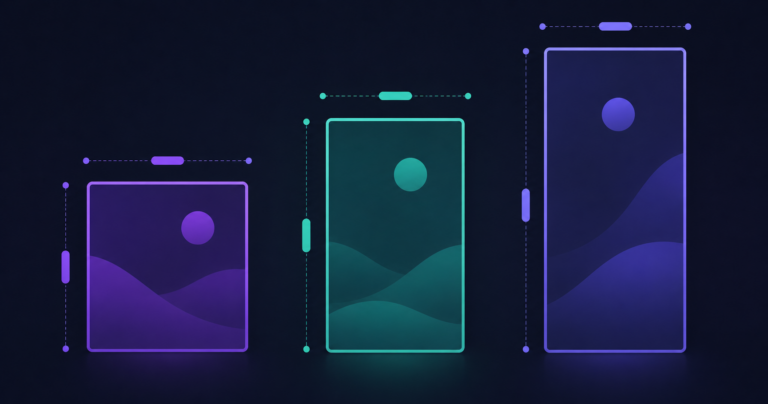
- Set your dimensions: Enter your target width and height in pixels. You can lock the aspect ratio — which I’d strongly recommend doing — so your image doesn’t get stretched and look distorted. If you only know one dimension, just enter that and let the tool calculate the other automatically.
- Preview and adjust: You’ll see a live preview of what the resized image looks like before downloading. If it doesn’t look right, tweak the numbers and check again. This step saves a lot of time.
- Download your file: Hit the download button and your resized image saves directly to your device. Done. The whole process takes under a minute.
Real Numbers — What This Looks Like in Practice
Let’s get specific, because vague advice isn’t helpful.
A typical photo taken on a Samsung Galaxy or iPhone might be around 4000×3000 pixels and 4–6MB in size. If you’re applying for jobs through a NADRA-verified portal or submitting documents to a Pakistani university’s online admissions system, they’ll often specify a maximum of 200KB and dimensions like 300×400 pixels for passport-style photos. Your original file is 20 times too large. Two quick changes in the resizer — set width to 300, height to 400, lock aspect ratio off for this specific case — and you’re well within limits.
For freelancers uploading portfolio work to Upwork or Fiverr, a hero image that’s 1200×630 pixels at under 1MB hits the sweet spot for fast loading without looking blurry. Starting from a 5MB original, resizing to those dimensions typically brings it down to 300–500KB — no quality loss that a client would ever notice.
Bloggers running WordPress sites see real speed improvements too. Resizing a 3000-pixel-wide photo down to 1200 pixels wide can cut load time by 40–60% on mobile — which directly affects your Google ranking.
Is It Safe to Upload Your Images Online?
This is a fair question and you should always ask it. With ToolifyCore’s Image Resizer, everything happens locally in your browser. Your image never gets sent to a server, stored anywhere, or seen by anyone else. The processing runs entirely on your device using client-side code. Once you close the tab, there’s no trace of your file anywhere online.
This matters especially if you’re resizing sensitive documents — ID cards, medical images, private photos. You’re not handing those files to a third-party server you know nothing about.
Frequently Asked Questions
Does resizing an image reduce its quality?
Making an image smaller (reducing dimensions) generally preserves quality well — you’re just showing fewer pixels, and the ones remaining are still sharp. Going larger than the original is where quality suffers, because the tool has to invent pixel data that wasn’t there. Stick to same-size or smaller for best results.
What’s the difference between resizing and compressing an image?
Resizing changes the pixel dimensions — the actual width and height. Compression reduces the file size by optimizing how the image data is stored, without necessarily changing dimensions. For the best results, use both: resize first, then run it through the Image Compressor for an even leaner file.
Can I remove a background before resizing?
Absolutely. If you’re working on a product photo or a profile picture that needs a clean look, use the Background Remover first, then bring that image into the resizer to hit your exact dimensions. It’s a clean two-step workflow that takes maybe two minutes total.
Ready to stop fighting with upload limits and broken layouts? The Image Resizer is free, instant, and works right in your browser — no downloads, no accounts, no stress. Try it now and get your images exactly where they need to be.